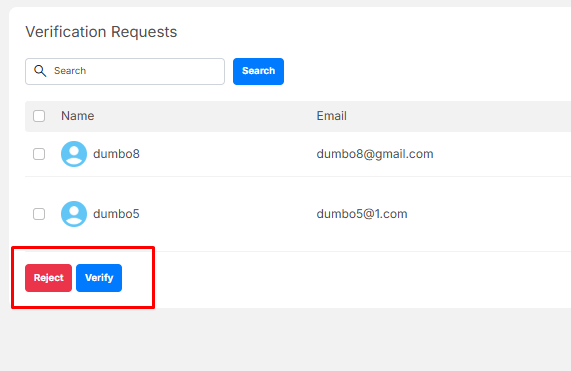
The Verification Requests page allows administrators to review and manage user identity verification submissions.
Navigation path: Admin Dashboard > Content Manager > Verification Requests
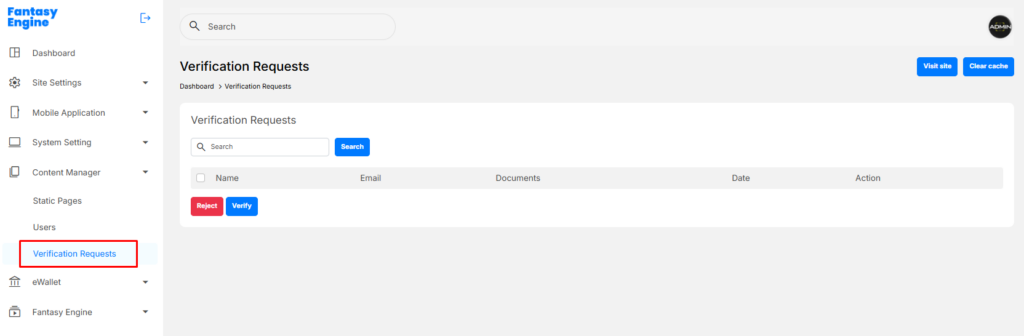
Review Verification Documents #
- Click on the document links to review the uploaded files.
- Ensure:
- Documents are clear and readable
- The full document is visible
- Information matches the user’s account details
- No part of the document is censored

Verify a Request #
- Click Verify next to the user
- Confirm the action in the confirmation popup
- Once verified:
- The user’s account status is updated to Verified
- The user can withdraw funds and access restricted features

Reject a Request #
- Click Reject next to the user
- Confirm the rejection in the confirmation popup
- The request will be marked as rejected
- The user will remain unverified and may resubmit verification later

Bulk Actions #
- Select multiple requests using the checkboxes
- Use Verify or Reject buttons at the bottom to process requests in bulk