
This section explains how administrators can manage contests in the Fantasy Engine.
Navigation Path: Admin Dashboard > Fantasy Engine > Contests
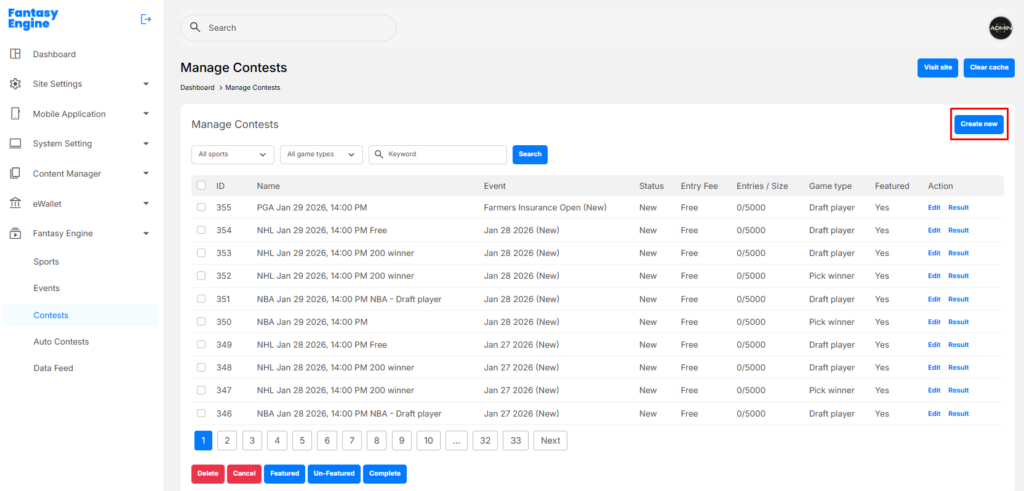
Create a Contest #
1. Select Sport and Event
- Sport: Select a sport (e.g. Soccer, NBA, NHL).
- Event: Choose an event related to the selected sport.
- Game Type: Select the game type (e.g. Draft player, Pick winner).
ℹ️ Event and Game Type are enabled after selecting a sport.

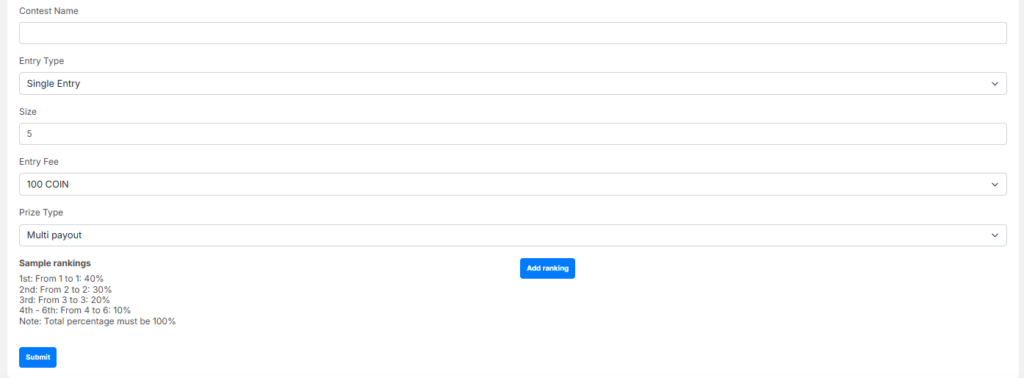
2. Enter Contest Information
- Contest Name: Enter a clear and unique contest name.
- Entry Type:
- Single Entry – Each user can join once.
- Multi Entry – Users can join multiple times.
- Size: Maximum number of participants (must be ≥ 2).
- Entry Fee
- Free
- Fee (e.g. 10, 20…)
- Select Prize Type
Choose how rewards will be distributed:
Winner Take All
- The top-ranked user receives 100% of the prize.
Top Three
- Rewards are given to 1st, 2nd, and 3rd places.
- Winning prize must be COIN.
Example:
- 1st: 4500 COIN
- 2nd: 2700 COIN
- 3rd: 1800 COIN
ℹ️ The winning percentage can be set in General Configuration.
Multi Payout
- Prizes are shared across multiple ranking ranges.
- Click Add ranking to define:
- From rank
- To rank
- Percentage (%)
Example:
- Rank 1 → 1: 40%
- Rank 2 → 2: 30%
- Rank 3 → 3: 20%
- Rank 4 → 6: 10%
⚠️ Total percentage must equal 100%.
- Submit Contest
Manage a Contest #
After creation, go to Dashboard → Contests → Manage Contests
The contest list will display all created contests
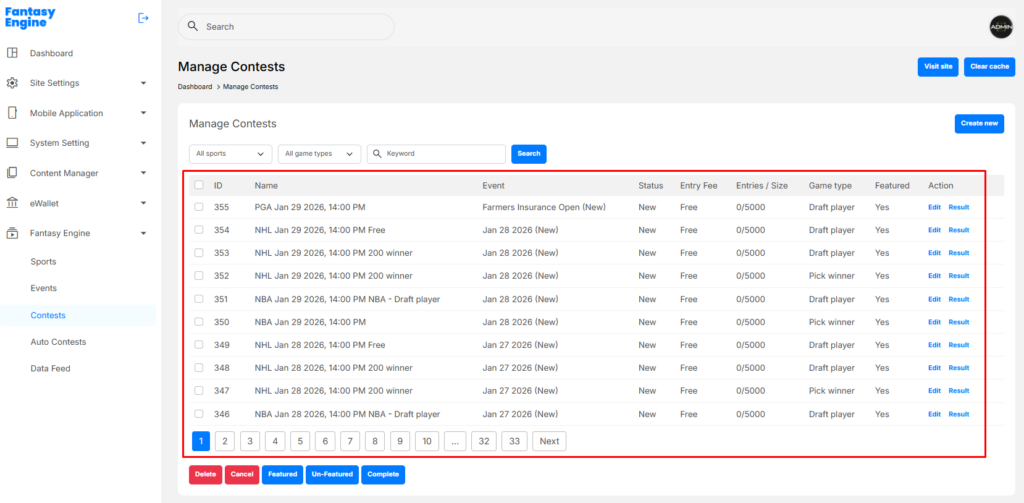
Filter and Search Contests #

Use the filters at the top to quickly find contests:
- Sport – Filter by sport
- Game Type – Filter by game type
- Keyword – Search by contest name
Click Search to apply filters.
Contest Information Overview #
Each contest shows the following details:

- ID – Unique contest ID
- Name – Contest name
- Event – Associated event and status
- Status – Live, Cancel, or Complete
- Entry Fee – Free or COIN amount
- Entries / Size – Joined players vs maximum size
- Game Type – Draft player or Pick winner
- Featured – Featured status (Yes / No)
Contest Actions #
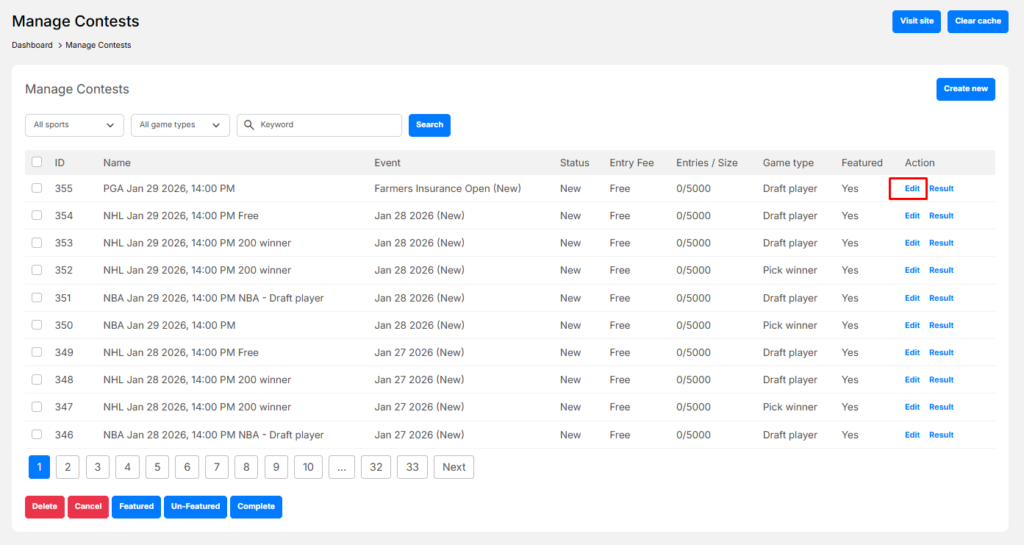
In the Action column, you can perform the following:
Edit Contest #
- Click Edit to update contest details.
- Only available before the contest is completed.
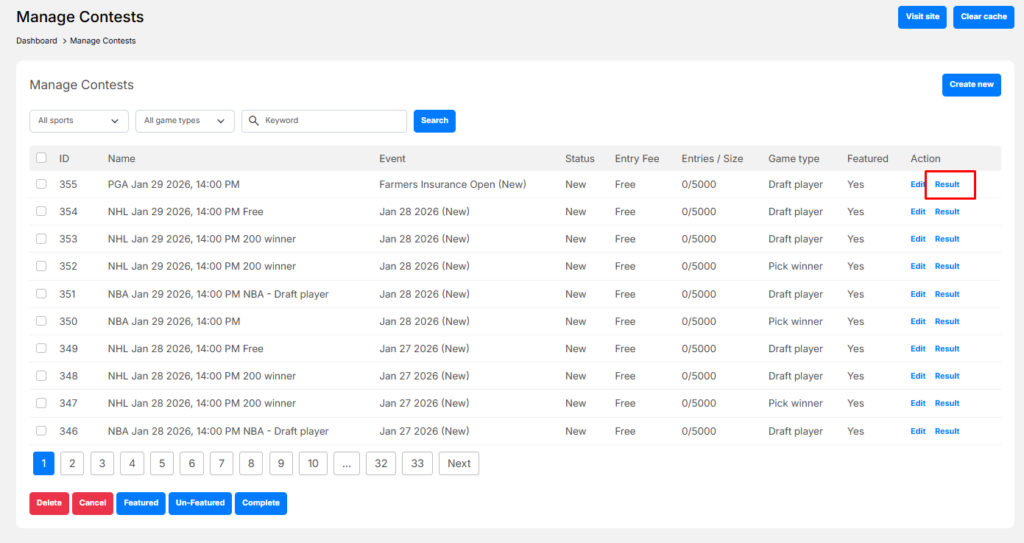
View / Update Results #
- Click Result or Update result to:
- View final standings
- Verify contest outcomes
- Confirm winners after event completion
Cancel Contest #
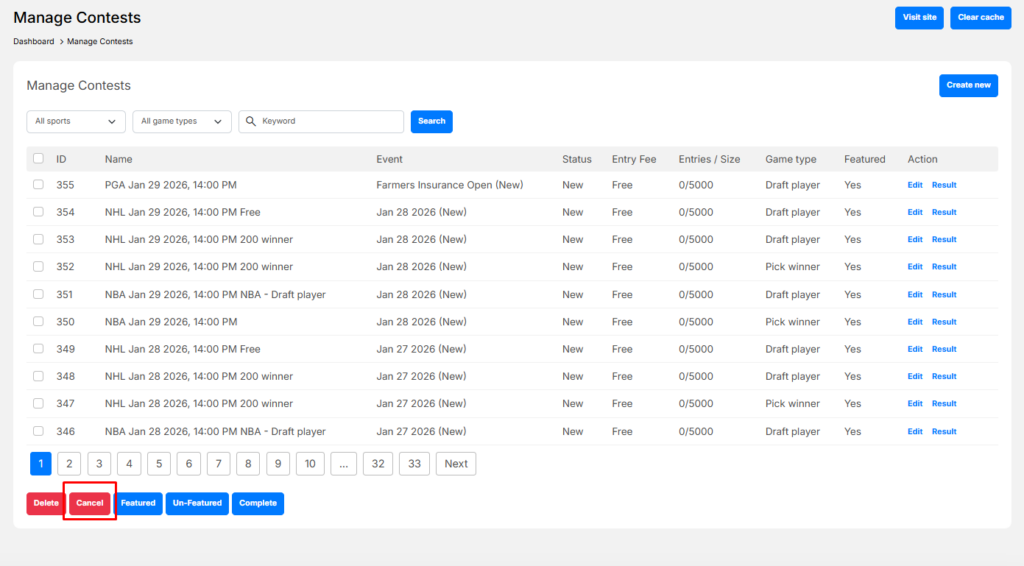
- Select one or more contests.
- Click Cancel to cancel them.
- Entry fees will be handled according to system rules.
Complete Contest #
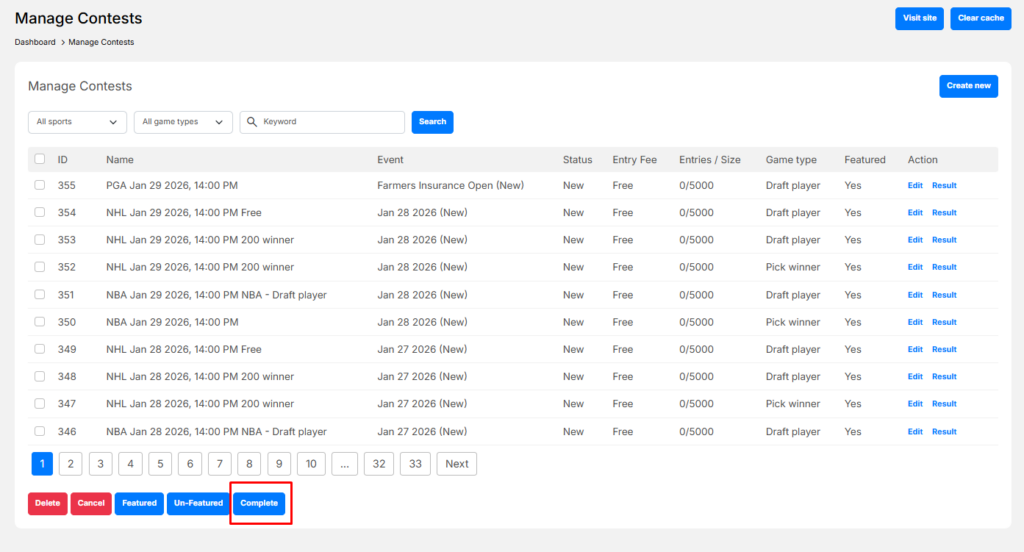
- Select completed contests.
- Click Complete to finalize them.
- Rewards will be distributed to winners.
Feature Management #
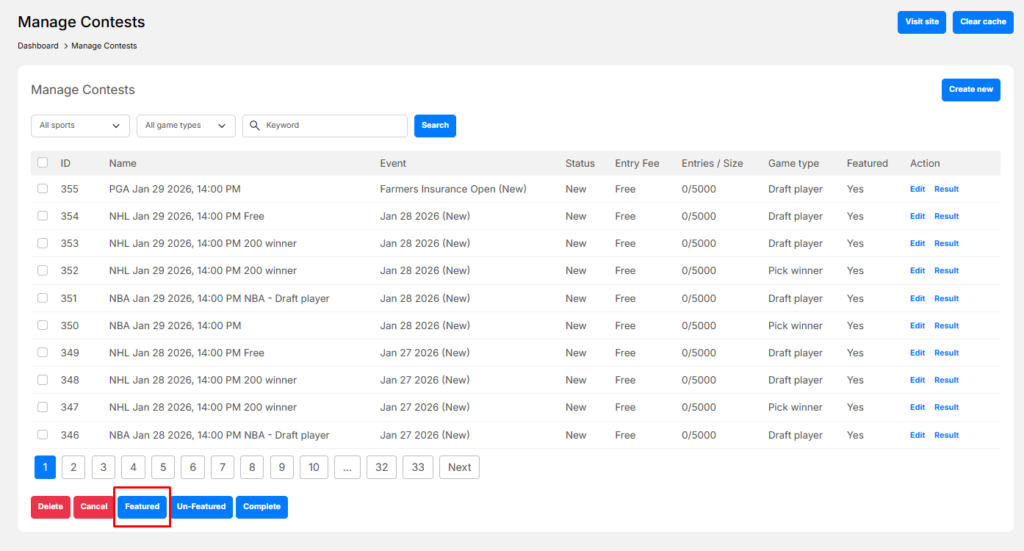
- Select a contest and click:
- Featured – Highlight the contest
- Un-Featured – Remove highlight
Featured contests are promoted in the user interface.
Bulk Actions #
You can select multiple contests and apply actions:
- Delete
- Cancel
- Complete
- Featured / Un-Featured


